The following example details the steps required in order to use Greek characters for the screen interface, prep tickets and customer receipts on a pos station equipped with MS Windows and a Star TSP100 thermal printer. The Star TSP100 includes internal Greek character sets by default.
Note that many printers do not contain internal Greek characters by default and must be special ordered. AmigoPOS uses internal printer fonts to achieve maximum printing speed and print quality, in contrast to many other pos applications that use Windows drivers to print Greek characters, resulting in greatly reduced (20-50 times) print speed and "fuzzy" characters due to the fact that Windows printer drivers must first convert the printout to a graphic before printing.
1. Configure Windows to use Greek characters
MS Windows must be configured to use Greek characters. Open the Windows Control Panel and click on the Region Settings applet. Select the 'Advanced' tab and choose Greek (Greece) from the drop-down list. Click OK to reboot the PC.
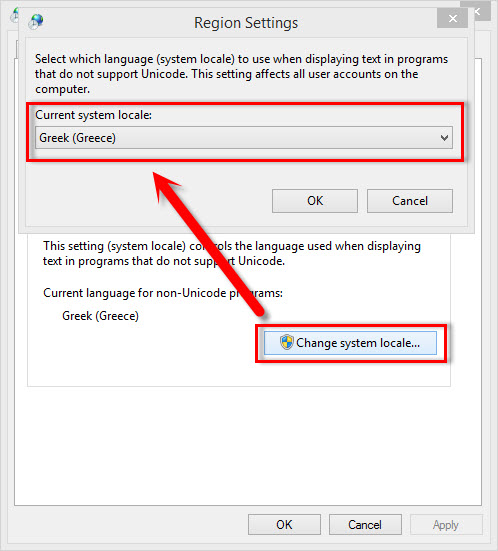
Specify the language in the Regional and Language Settings Control Panel Applet
2. Configure the printer to use Greek characters
After installing the Start TSP100, open Windows Control Panel | Devices and Printers, right click on the receipt printer and click 'Printer Properties'. Select the TSP 100 Config tab and click the Launch Configuration Application button. Select Star Line Mode (default) emulation and click OK.
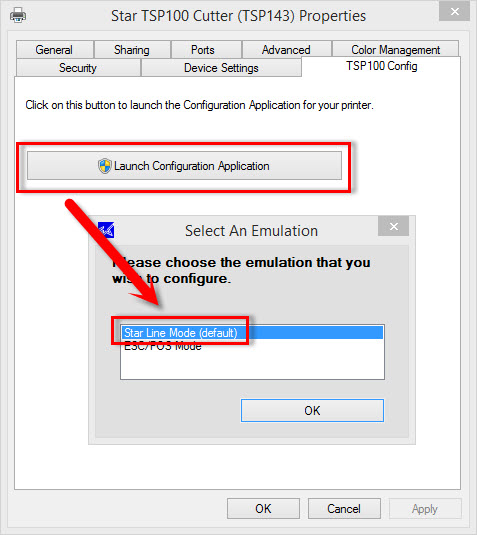
Star TSP100 Driver Configuration
Select the General Settings tab and choose 869 (Greek) from the Code Page drop-down list. Click the Apply Changes button followed by the Close button.
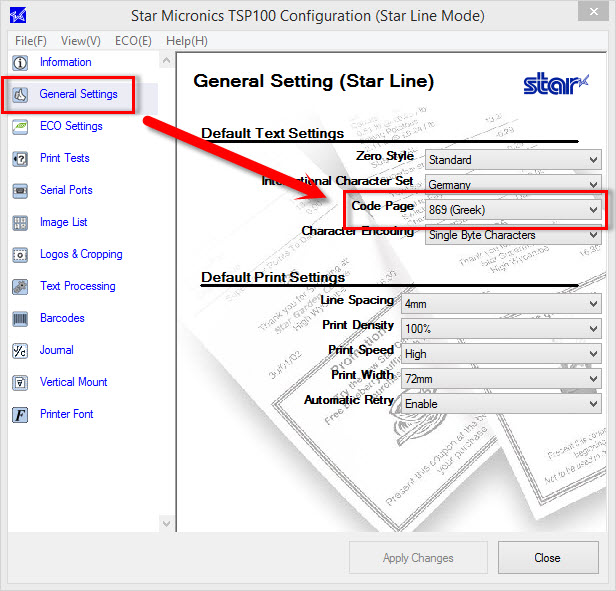
Star TSP100 Driver Configuration
3. Configure AmigoPOS to use the Greek 869 Code Page
In Back Office | Settings | Peripherals, select Receipt Printer, enter Code Page 18 and set the printer type to Star Line Mode.

Back Office | Settings | Peripherals
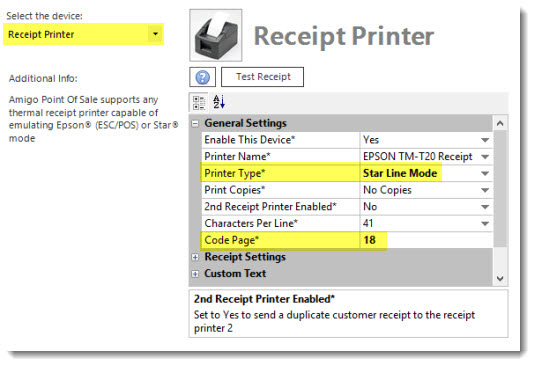
Specify the Code Page in Back Office | Settings | Devices | Receipt Printer | General Settings
4. Configure AmigoPOS to print the Euro (€) Symbol
In Back Office | Settings | Devices | Receipt Printer | Currency Symbol Override, set Enabled to Yes, enter Code Page 17, Ascii Code 135 and set Wide Characters to No.
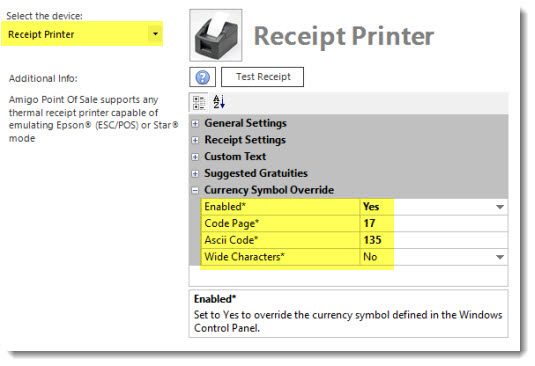
Specify the Code Page in Back Office | Settings | Devices | Receipt Printer | Currency Symbol Override