Below are a list of common errors that may be encountered when installing or using AmigoPOS:
Issue: Unable to connect to SQL Server Express running on a different PC
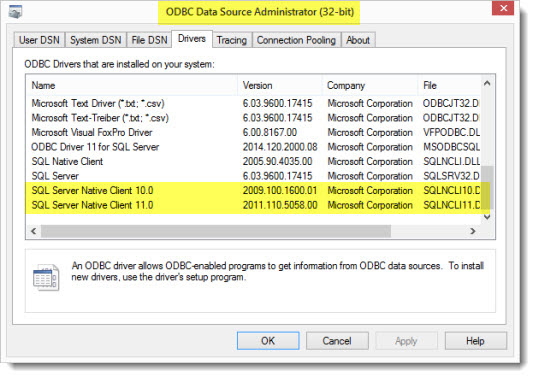
If you have already referred to the installation and initial setup help topics to confirm that Named Pipes protocol is enabled, Firewalls are properly configured, etc. and you still receive a connection error (generally with the word Provider in the description), the local PC may have an outdated SQL Native Client database driver. Referring to the image below, ensure that SQL Server Client 11.0 or later is installed. The ODBC Data Source Administrator can be accessed in Windows Control Panel | Administrative Tools | Data Sources (ODBC). Although AmigoPOS attempts to install the latest SQL Native Client silently at installation, it is sometimes not successful on computers with previous version installed and must be downloaded and installed manually here (scroll down to Microsoft SQL Server 2012 Native Client).
Issue: Unable to print customer receipts or prep orders
Verify that AmigoPOS is properly licensed on the manager screen by pressing System | License buttons. If the Licensing button is not visible, follow the instructions in the order confirmation message to license the application.
Issue: The business name or menu item names are not printing correctly on the customer receipt, mini reports, etc.
Some special characters cannot be used in item names. Verify that there are no apostrophes, commas, percent signs, etc.
Issue: Long delay after Submit button is pressed
When the submit button is pressed on the order entry screen, the order should be processed, the customer receipt sent to receipt printer and the prep ticket(s) sent to prep printers within 1-2 seconds. If the delay is longer, the most likely reason is that remote printers are not properly configured. If the remote printer is not found, AmigoPOS will attempt to send the print job to the default Windows printer. If that printer is also offline, a delay will occur. If the default printer is a network printer, an exceptionally long delay may occur. To verify that the delay is caused by printer configuration, temporarily disable the local receipt and remote printers in back office, then start a new order and press the Submit button. To solve this issue, ensure that the remote printer settings are correct. In addition, you may wish to disable the setting for Use default printer when this printer is offline on the receipt/prep printer setup screens (this value affects both the receipt & prep printers).
Issue: Seating chart tables do not appear with red background when the table is in use
Using the AmigoPOS image editor, ensure that the proper transparency color is selected for each table image. The transparency color is the background color of the image, which will turn red when the table is in use.
Issue: Receipt printer output is not legible or improperly formatted
Parallel port receipt printers are recommended for ease of setup and reliability. If you are using a printer with a parallel port, the most likely cause of improperly formatted text is the Printer Type setting. Ensure that the correct type is selected (Epson or Star) and try again. If using a serial port and you are certain that the correct printer type is selected, confirm that you are using the correct cable and that the serial port settings on the pc match those on the printer. Many USB printers require a driver that runs as a Windows service. If your USB interface printer is not printing correctly, ensure that the printer driver application is not intercepting and reformatting the data sent to the printer. For maximum speed, AmigoPOS uses raw printer commands specific to the printer type. For remote printers, one possible cause of printer errors is network print server configuration.
Issue: I have accidentally deleted all user permissions and can't log in to back office
For security, users are not allowed to modify employee permissions unless they have access to back office. If you have accidentally deleted all employee permissions, send a compressed copy of your database support personnel, who will quickly add appropriate permissions and return the database to you. The database location can be found by running the Database configuration utility from the AmigoPOS | program group in the start menu.
Issue: Full size reports in back office are only 3 inches wide.
The screen (and print) size of full sized back office reports are based on the default paper size of the default Windows printer. Select a full size printer as the default printer to display reports correctly. If no full size printer is available, use the Microsoft Office Document Writer as the default printer or install a generic/text only printer by using the Add Printer function in the Windows Printer and Faxes folder and set it as default printer.
Issue: I have changed the order type or order entry settings in back office and now the order entry screen does not respond to mouse clicks
If you have assigned a specific menu to an order type but that menu is disabled, errors may occur when selecting the order type. For example, if the pizza menu is disabled but is set as the default menu type for delivery orders, the disabled pizza menu will appear when starting a delivery order. To correct this issue, select an active menu as default for the order type and try again.
Issue: I am able to test my OPOS device using the manufacturer utility, but not in AmigoPOS
First, ensure that no other application is attempting to use the same device and try again. If the issue is not corrected, the manufacturer's OPOS configuration utility may have installed older OPOS drivers over the new OPOS drivers installed with AmigoPOS. Most manufacturer configuration utilities show the version of the OPOS driver in use. AmigoPOS uses version 1.12.901 (as of November 2008). If the manufacturer's OPOS configuration utility is using older drivers, reinstall AmigoPOS to use the newer drivers, reboot and try again.
Issue: Unable to start AmigoPOS after initial installation
Most likely, another program was using files that required updating by the installer. Shut down all other programs, including antivirus utilities, and run the installer again. If that does not solve the issue, ensure that you have the latest service packs installed on the pc. AmigoPOS requires Microsoft XML v6, MDAC 2.8 and MS Jet 4.0.
Issue: Unable to start AmigoPOS or access devices such as barcode scanner or fingerprint reader after installing a manufacturer provided drivers
Some drivers may overwrite new OPOS drivers required by AmigoPOS with outdated drivers. This will cause errors when attempting to start AmigoPOS or use any devices, whether through OPOS or traditional interface. Reinstall AmigoPOS, reboot and try again.
Issue: Unable to create a database backup in MS Windows Vista or MS Windows Server 2008
Permission errors may prevent AmigoPOS from saving a database backup file. Ensure that the path to a folder that is writeable by AmigoPOS is specified, click Save Settings and click the Backup Database button.