The customer may be required to present identification to verify age before purchasing menu items such as alcoholic beverages or cigarettes. AmigoPOS can prompt the user to select the type of identification, birthday and optionally enter a description. This information will also print at the bottom of the customer receipt.
Back Office Settings
In Back Office | Settings | Main Settings | Order Entry, click the Age Verification tab to view the list of identification methods for age verification. Enter new items at the top of the grid and click the Enter key to save.
- Age Verification Method: The name that is displayed on the screen and printed at the bottom of the customer receipt.
- Button Position: Set the button position so that the most commonly used verification methods appear at the top of the list.
- Show Keyboard: Check the box if additional information is required for the selected identification; i.e. Driver's License Number or Passport Number.
- Keyboard Prompt: When the previous setting is enabled, the text to show at the top of the on-screen keyboard.

Back Office | Settings | Main Settings
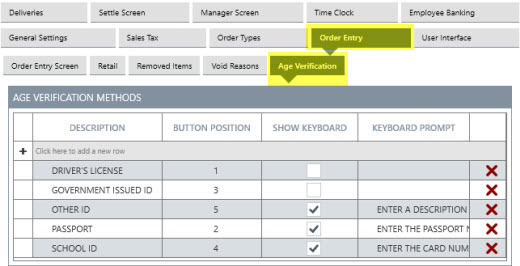
Age Verification Methods
In Back Office | Settings | Peripherals, select Receipt Printer from the drop-down list and set the value of the Age Verification custom text setting. This value prints above the age verification method and birthday on the customer receipt.
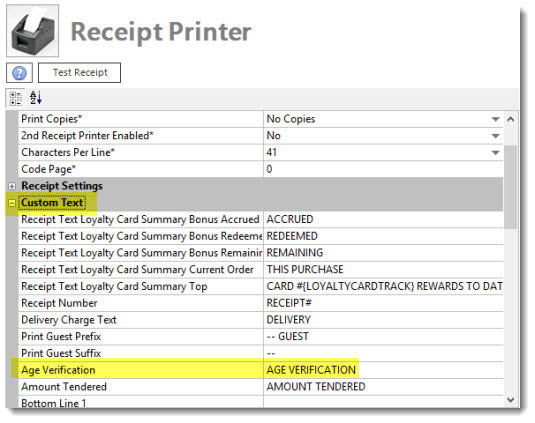
Receipt Printer Text
In Back Office | Menu | Menu Categories, set the value of the Minimum Age Verification setting to the minimum age required to purchase an item in the category.
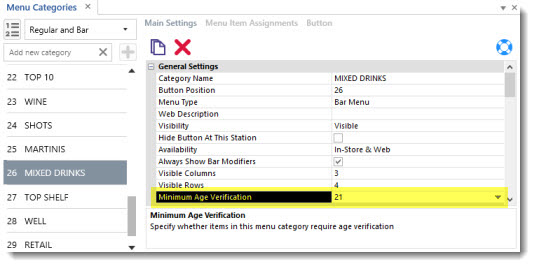
Menu Categories Editor
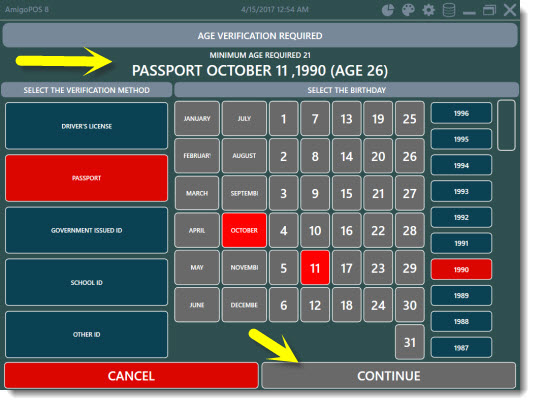
When the menu category is selected, the user is prompted to select the identification method and birthday.
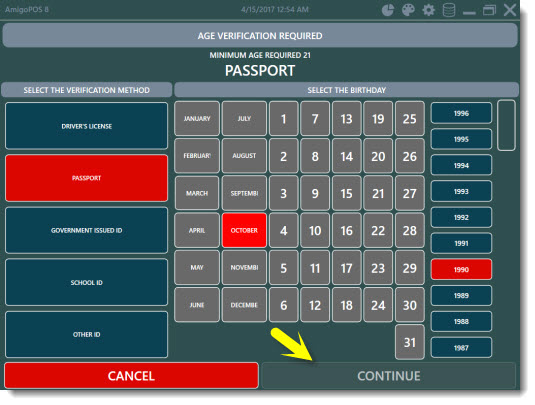
The continue button remains disabled until the identification method and a valid birthday is selected.
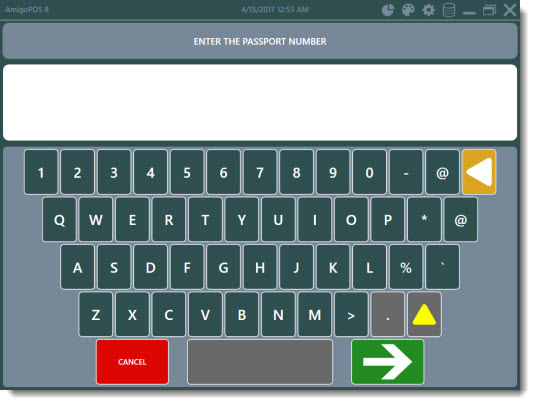
The on-screen keyboard is displayed if the Show Keyboard setting is enabled for the selected identification method. Otherwise, the order entry screen is displayed.
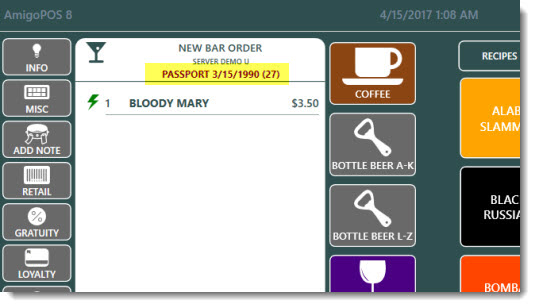
The order entry screen displays the identification type with the birthday and the customer's age above the order items.
The customer receipt displays the age verification information at the bottom.
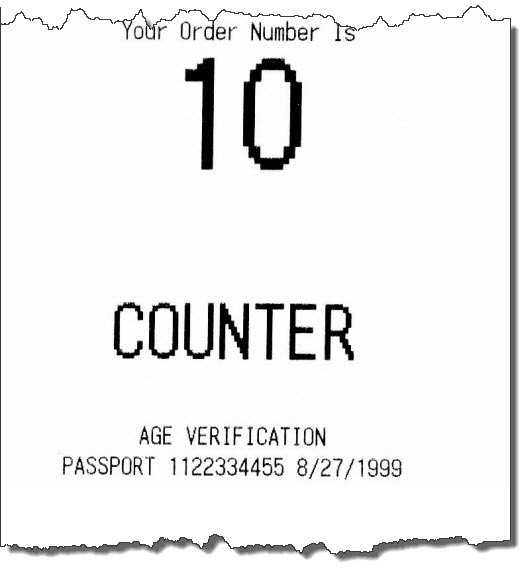
Customer Receipt