Run the AmigoPOS Data Service application only on the computer where the database server is installed.
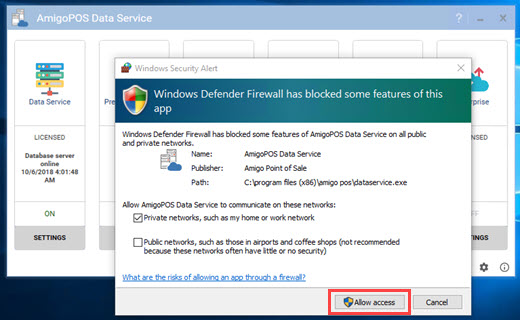
Windows Defender Firewall will display a security alert. The AmigoPOS Data Service application communicates on the local network using port 765. Check the box to allow communication on private networks and click Allow Access. Note that other firewall applications may not display a notification, in which case an exception must be added to allow local network communications using the TCP protocol on port 765.
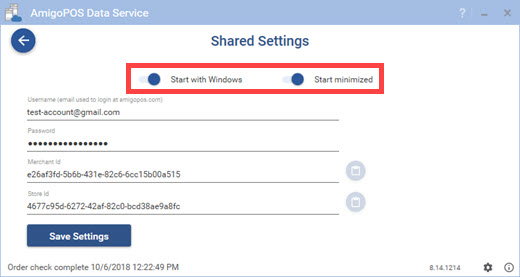
Click the gear icon at the bottom right to display the settings and set the application to start automatically with Windows and to minimize to the Windows taskbar at startup.
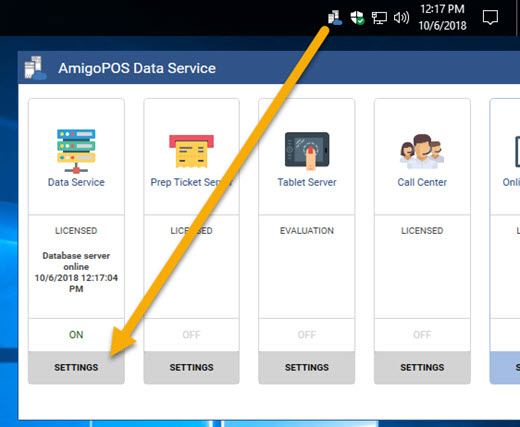
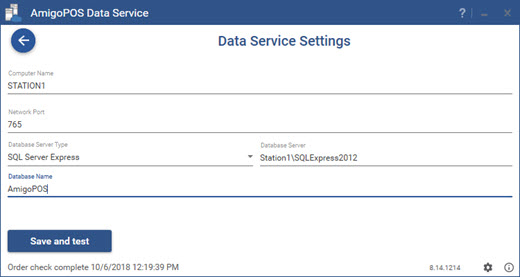
Reboot the computer, double-click the Data Service icon in the Windows taskbar to activate the user interface and click the Settings button under the Data Service tab.
Note the host name and network port and click the arrow to return to
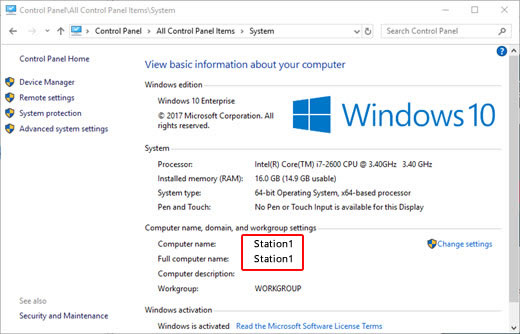
the main screen. The Host Name should match the computer's Windows name
as displayed in Windows Control Panel/System.
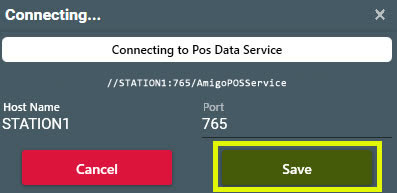
Run the pos, tablet pos and back office at each computer. Click the Settings button at the bottom of the connection window.
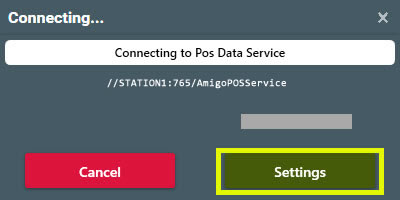
Verify that the Host Name and Port match the settings that are displayed in the Data Service settings screen and click Save.