Current AmigoPOS 8 users can begin using the data service application instead of a direct database connection by completing the steps below. The data service application is now in late beta testing, where all known issues have been fixed, but new issues may occur. Issues are generally fixed within 1 day of being reported.
*Note that the SQL Native Client database driver is no longer required except when using the QuickBooks interface, which is not yet compatible with the data service application.
1. Run the data service application at the main pos station where SQL Server Express is running, add a firewall exception for port 765 and set the application to start automatically with Windows, as described at the next help topic. Database configuration is not necessary, since the data service application uses the same database settings as AmigoPOS.
2. If the pos application is set to start automatically with Windows, delete the shortcut from the Program Files Startup Folder. Verify that the data service is running at the main pos station and run the pos application from the desktop shortcuts Data Service folder.
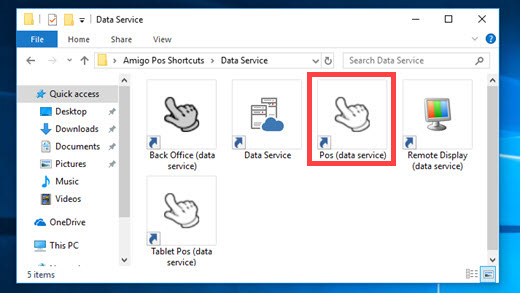
Applications that are compatible with the data service will display a small connection dialog at startup so that a connection can be established by entering the host name and port.
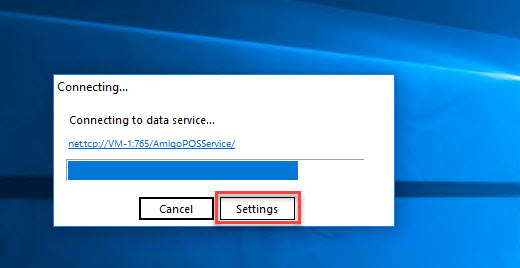
Enter the name of the computer where the data service application is running. The default port should be changed only if the data service application is configured to communicate using a different port. The pos will connect to the data service after a few seconds.
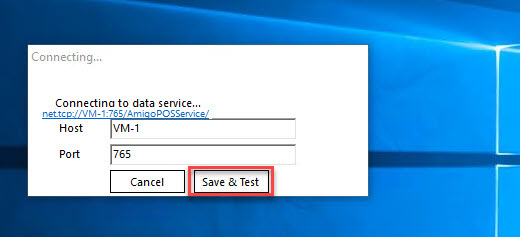
Repeat this procedure for both the back office and remote display applications. Always use the shortcuts in the Program Files Startup Folder to run the back office and remote display applications so that the application does not attempt a direct database connection at program startup.